Make it yours
Use the settings window for everyday changes. Save changes applies a complete profile; Discard changes reloads the saved one. Closing the window leaves the background driver running.
Buttons and wheel
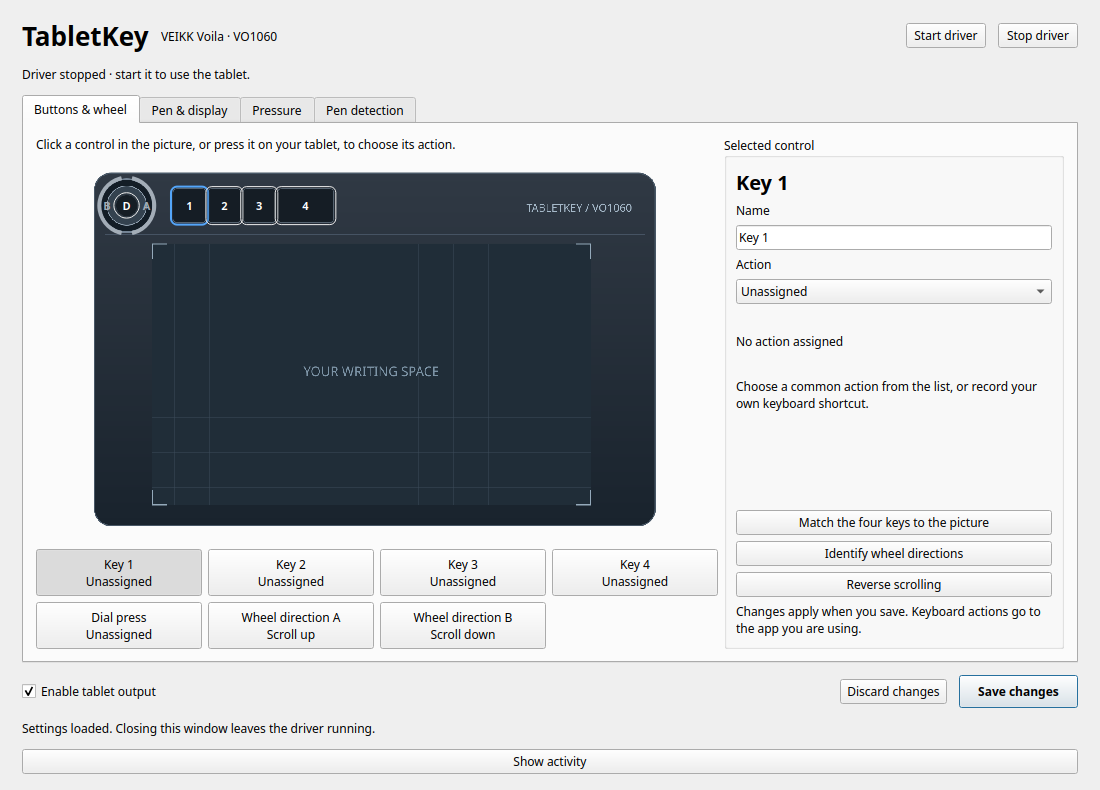
Click a control on the original tablet diagram, select one below it, or press the physical button. A blue outline marks the selection; green highlights show live activity. The four numbered keys run from nearest the dial outward. The dial's centre press is labelled D.
Choose a preset for editing, browser navigation, scrolling, media, or volume. For anything else, choose Custom shortcut, click Record a shortcut, type the chord, and click outside the recorder. The shortcut uses Linux key codes; keyboard layout and the receiving app determine its effect. Rename a control to something useful such as “Undo stroke”.
- Match the four keys to the picture learns physical order without reassigning bindings.
- Identify wheel directions asks you to turn clockwise and learns both labels.
- Reverse scrolling swaps the two wheel actions.
- Enable tablet output pauses/resumes pen, shortcuts, and wheel together.
The current profile is global. Switching from Brave to Obsidian does not switch mappings. For scripts, the CLI accepts hardware identifiers:
uvx tabletkey config set button_01 'CTRL+Z'
uvx tabletkey config output --disable
uvx tabletkey config output --enable
Pen and display
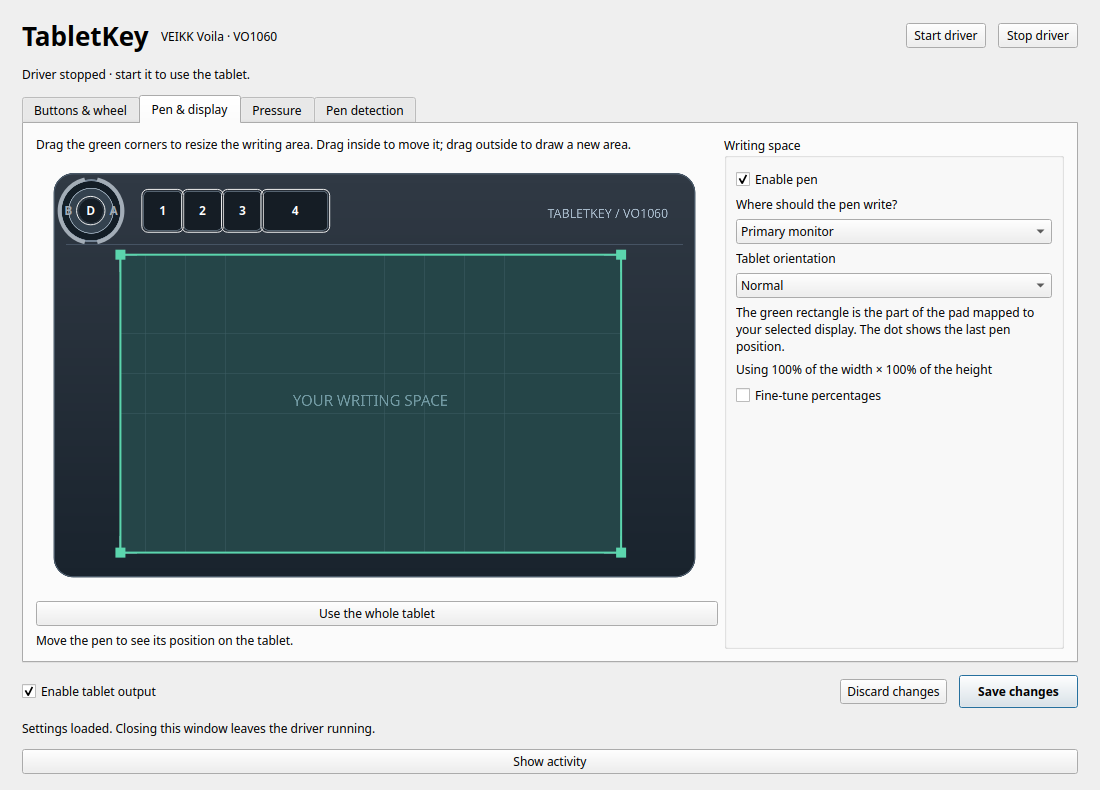
Choose a monitor, all enabled monitors, and an orientation. Drag the active area's corners to resize, drag inside to move it, or drag outside to draw a new rectangle. Use the whole tablet resets it. Fine-tune percentages exposes exact bounds. The live position dot helps you see the mapping.
All-monitor mode spans the logical desktop, choosing the nearest output for gaps. It is implemented but physical crossing still needs validation. Display changes rebuild output as needed.
uvx tabletkey displays
uvx tabletkey config display HDMI-A-1
uvx tabletkey config display all
HDMI-A-1 is an example; use a connector listed on your machine.
COSMIC routing changes only entries whose names begin with TabletKey VO1060 Pen /.
Unrelated settings are preserved; a first-write backup is saved beside COSMIC's configuration.
Malformed or concurrently edited configuration is rejected rather than overwritten.
Pressure
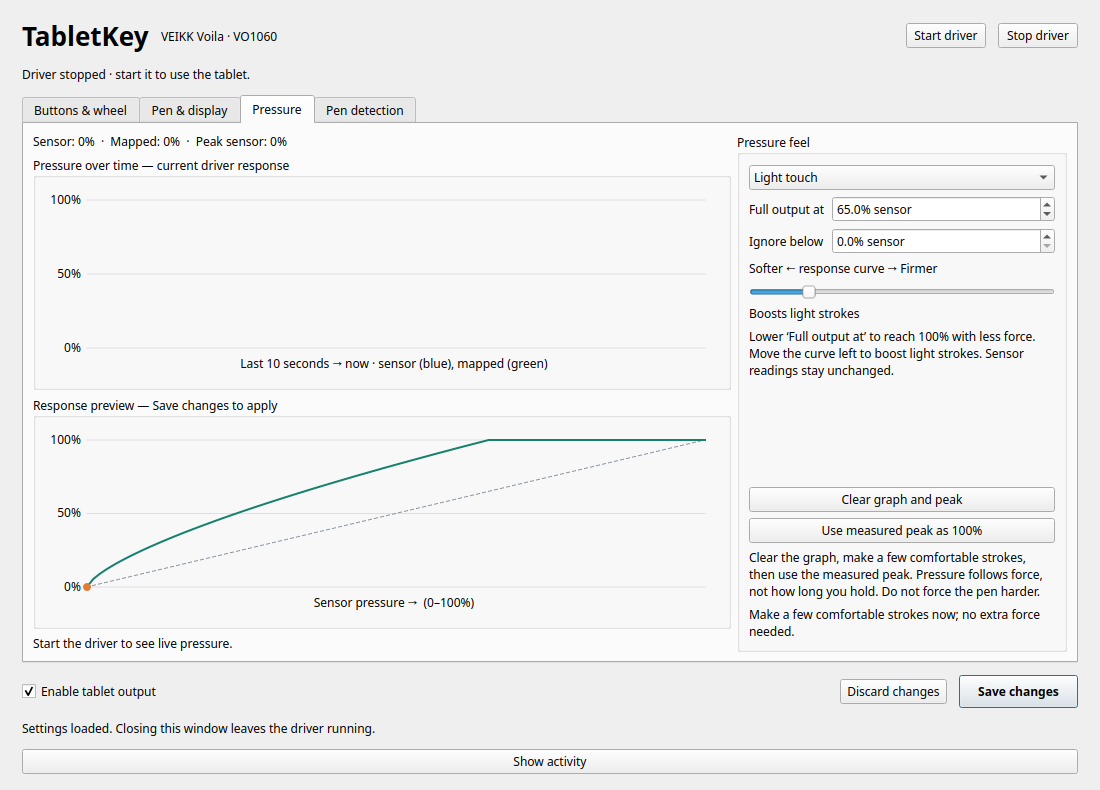
The time graph separates raw sensor pressure from actual mapped pressure over the last ten seconds. The response graph previews how the current controls would map sensor input; unsaved edits affect that preview only. The sensor's declared maximum is 8191, not a force measurement in newtons.
| Control | Effect |
|---|---|
| Linear | Original one-to-one sensor response |
| Light touch | Full output at 65% sensor input; boosts light strokes |
| Full output at | Choose the sensor level that produces 100% output |
| Response curve | Boost lighter strokes or require firmer strokes |
| Ignore below | Suppress low pressure noise; leave at zero unless needed |
For a personal response, clear the graph, make comfortable strokes, and choose Use measured peak as 100%. Then save. Do not press harder just to reach the sensor's full range. Pressure depends on force, not holding duration. Values above the declared range are rejected and reported diagnostically; the app does not silently redefine the sensor maximum.
Pen detection
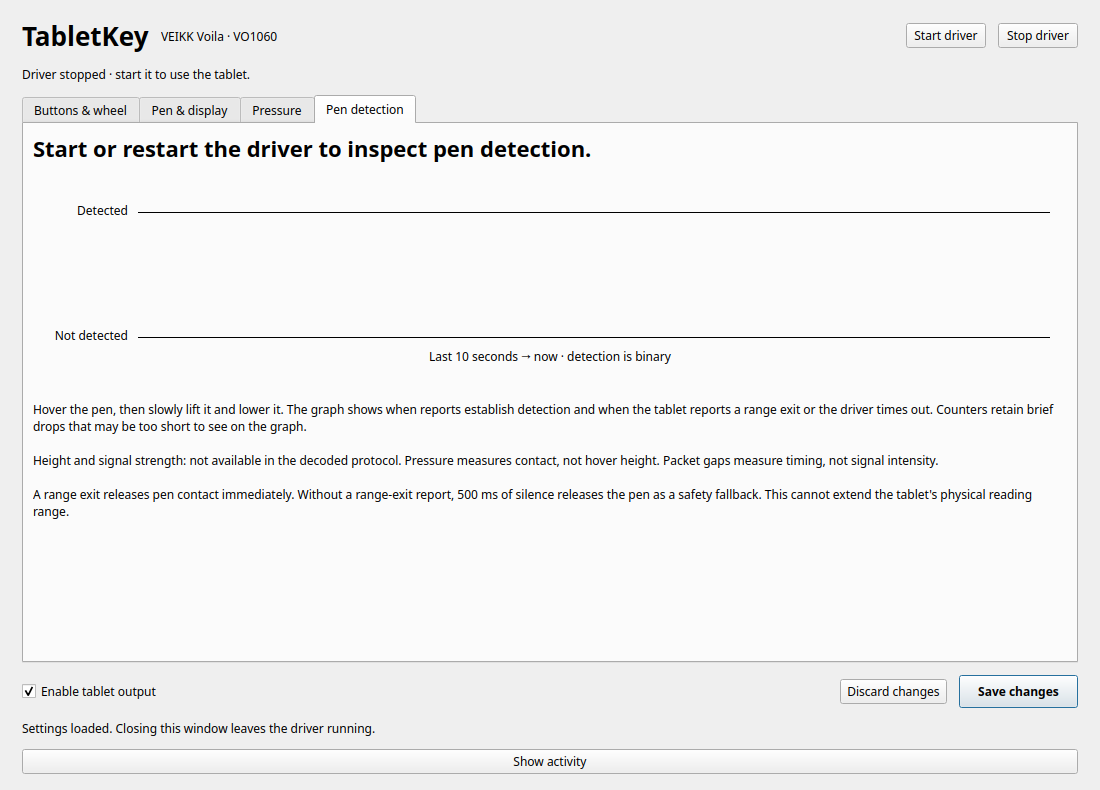
Detection is binary. The tab shows hover/contact, recent detection transitions, last-report age, reports in the last second, the largest processing gap during detection, and virtual-pen proximity. Counters retain brief range exits that are too short to follow visually. Up to 128 transitions are retained; very rapid flickering can shorten the displayed ten-second window.
An explicit tablet range exit releases contact and proximity immediately. In its absence, 500 ms without a valid pen report triggers a safety timeout. These are counted separately. There is no added hover grace period. A cursor-shape change alone does not establish its cause.
No height or signal-intensity field is established. Pressure is not hover distance, and packet gaps are timing diagnostics, not signal strength. Use an external ruler/reference to measure physical height.
Files and privacy
| Location | Contents |
|---|---|
$XDG_CONFIG_HOME/tabletkey/settings.json |
Validated global bindings, pen area/display, and pressure response |
$XDG_CONFIG_HOME/tabletkey/interface.json |
Names, learned key order, and wheel orientation |
$XDG_RUNTIME_DIR/tabletkey/ |
Private IPC socket, daemon lock, and rotating logs |
COSMIC input_devices.tabletkey.bak |
First-write routing backup beside the original file |
captures/ in a source checkout |
Explicitly recorded local diagnostics; ignored by Git |
The config default is ~/.config. If XDG_RUNTIME_DIR is absent, the app uses a private fallback
under /tmp. Pressure history and detection transitions are bounded in memory, not logged to disk.
A manual settings-file edit needs daemon reload; GUI saves apply through the running daemon.
Stop, update, or uninstall
Stop the daemon before replacing its Python environment:
uvx tabletkey daemon stop
uv tool upgrade tabletkey
For an installed tool, use tabletkey daemon stop instead of the first line.
Start it again after upgrading. For uvx-only use, stop first, then use uvx tabletkey@latest.
To remove a persistent installation, stop it and run uv tool uninstall tabletkey.
Settings remain available for a future reinstall.
One-time device access is separate from the Python package. If removing TabletKey permanently, review and remove its two setup files:
sudo rm /etc/udev/rules.d/70-tabletkey.rules /etc/modules-load.d/tabletkey.conf
sudo udevadm control --reload-rules
Existing session ACLs can persist until device reconnection or session restart. Do not unload uinput if another app uses it. The app-owned COSMIC routing entries and backup are left in place; uninstalling the Python tool does not restore desktop configuration automatically.